Audience:
Developers
Sandbox: account funding
Simulate account funding in Sandbox: book credit transfer and direct debit funding transactions with the Event Simulator.
Simulate funding an account with a credit transfer
In Sandbox, simulate receiving a credit transfer to fund an account with the Event Simulator and a fake debtor.
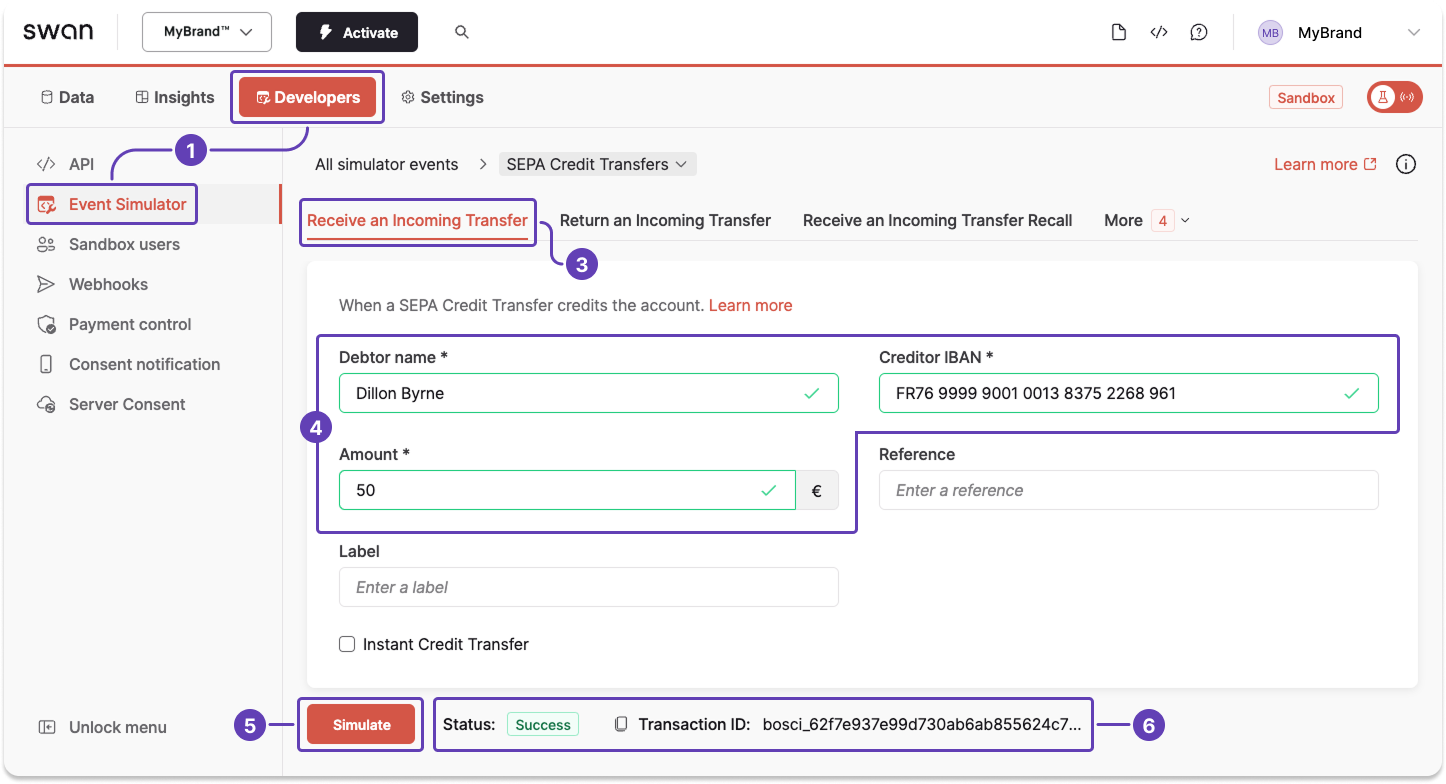
- Open the Event Simulator (Dashboard > Developers > Event Simulator).
- Go to SEPA Credit Transfers (not shown).
- Go to the Receive an incoming transfer tab.
- Enter the debtor name, the creditor IBAN (your Swan IBAN), and the amount.
- Click Simulate.
- A success message appears, indicating that the transaction is
Bookedto your Sandbox account.
Simulate booking an account funding direct debit transaction
In Sandbox, simulate booking a direct debit account funding transaction with the Event Simulator. Use the merchant payments section of the Event Simulator, even though it's an account funding exercise.
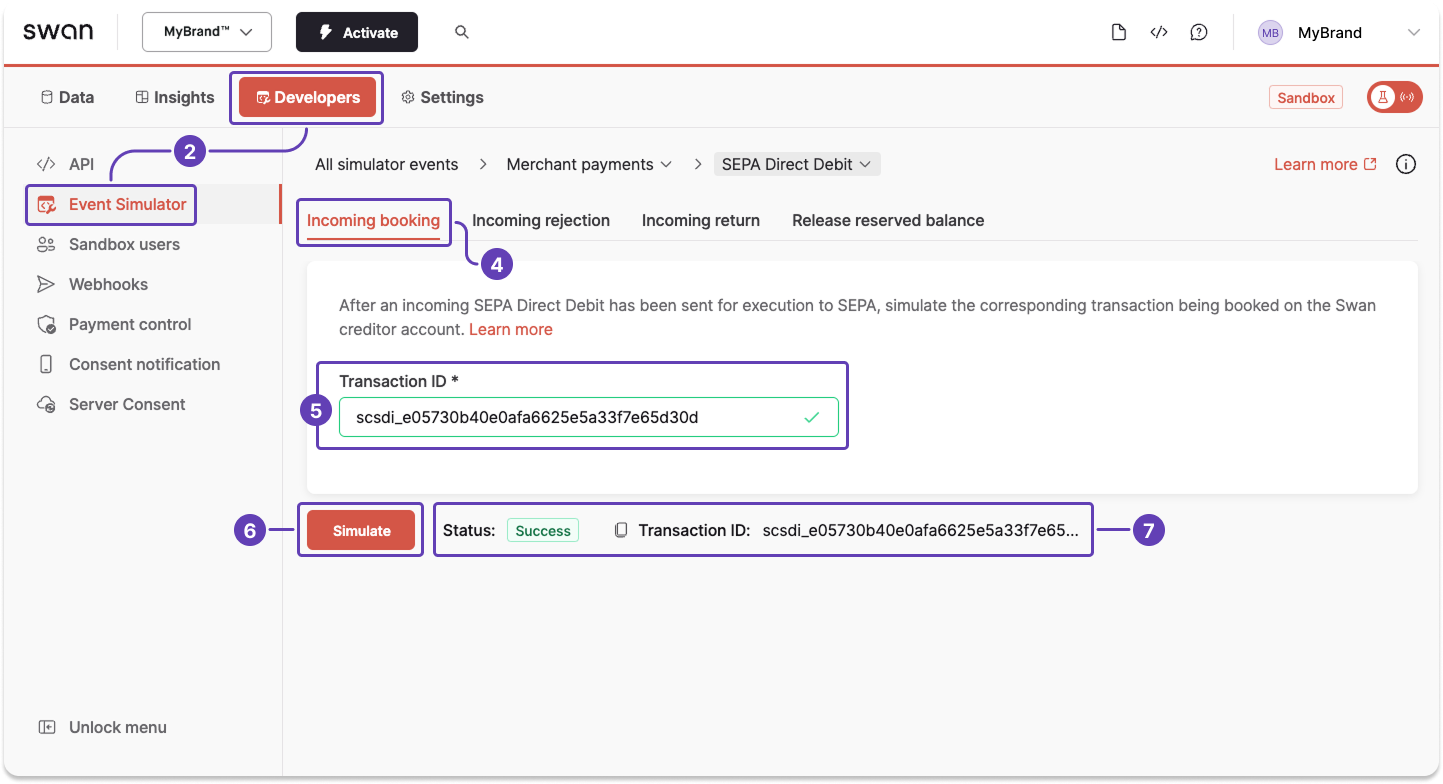
- Initiate a funding request, which creates an
Upcomingtransaction. - Open the Event Simulator (Dashboard > Developers > Event Simulator).
- Go to Merchant payments > SEPA Direct Debit (not shown).
- Go to the Incoming booking tab.
- Enter the transaction ID of the funding request transaction initiated in step 1 (from the payload).
- Click Simulate.
- A success message appears, indicating that the transaction is
Bookedto your Sandbox account.
Rolling reserve
Funds are Reserved and subject to the account funding rolling reserve policy.