Audience:
Developers
Sandbox: supporting document collection
Simulate supporting document collection in Sandbox: update collection and document statuses, and request documents.
Simulate updating a collection status
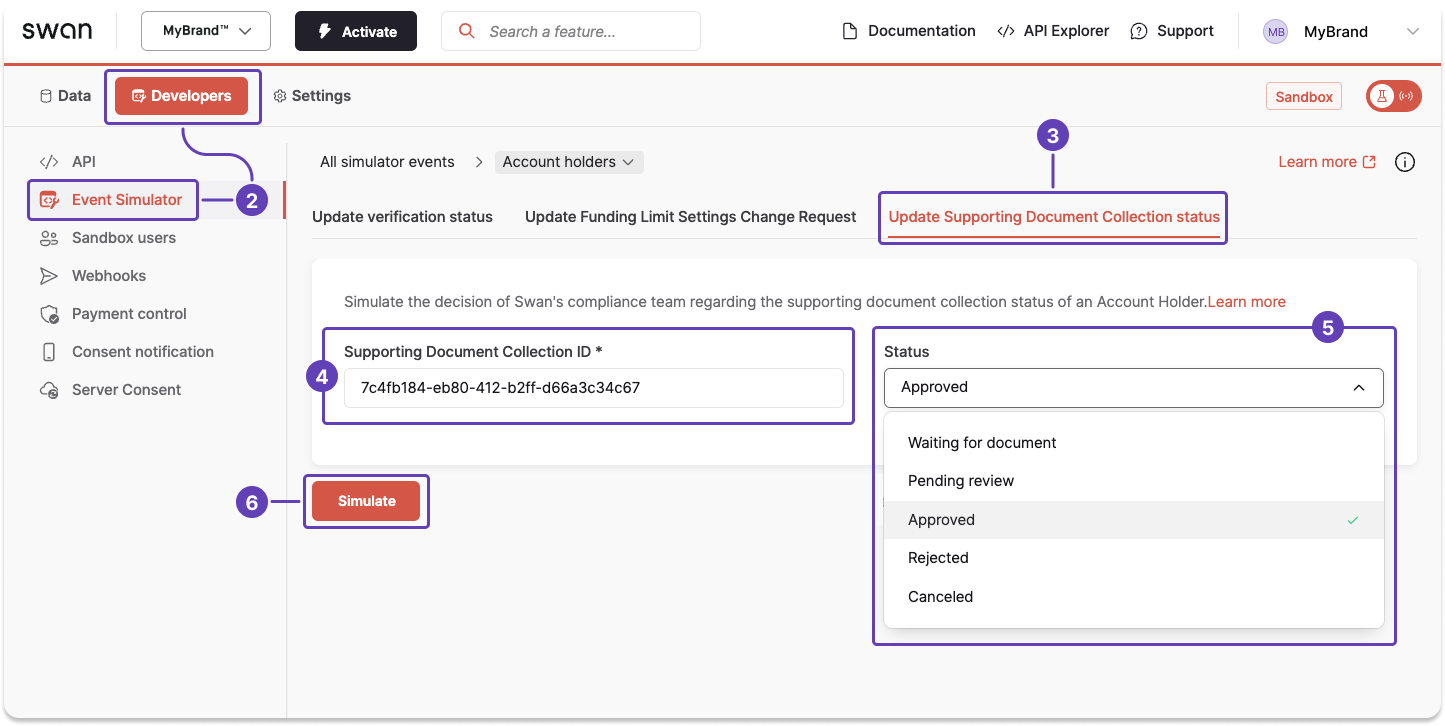
With the supporting document collection ID, use the Event Simulator to change the supporting document collection status to any available status.
- Get the supporting document collection ID.
- On your Dashboard, go to Developers > Event Simulator.
- Open Account holders, then go to the Update Supporting Document Collection status tab.
- Copy the document collection ID from the success payload you received in step 1, then paste it into the Supporting Document Collection ID field in the Event Simulator.
- From the dropdown, choose the status you'd like to simulate.
- Click Simulate.
Simulate updating a document status
Event Simulator
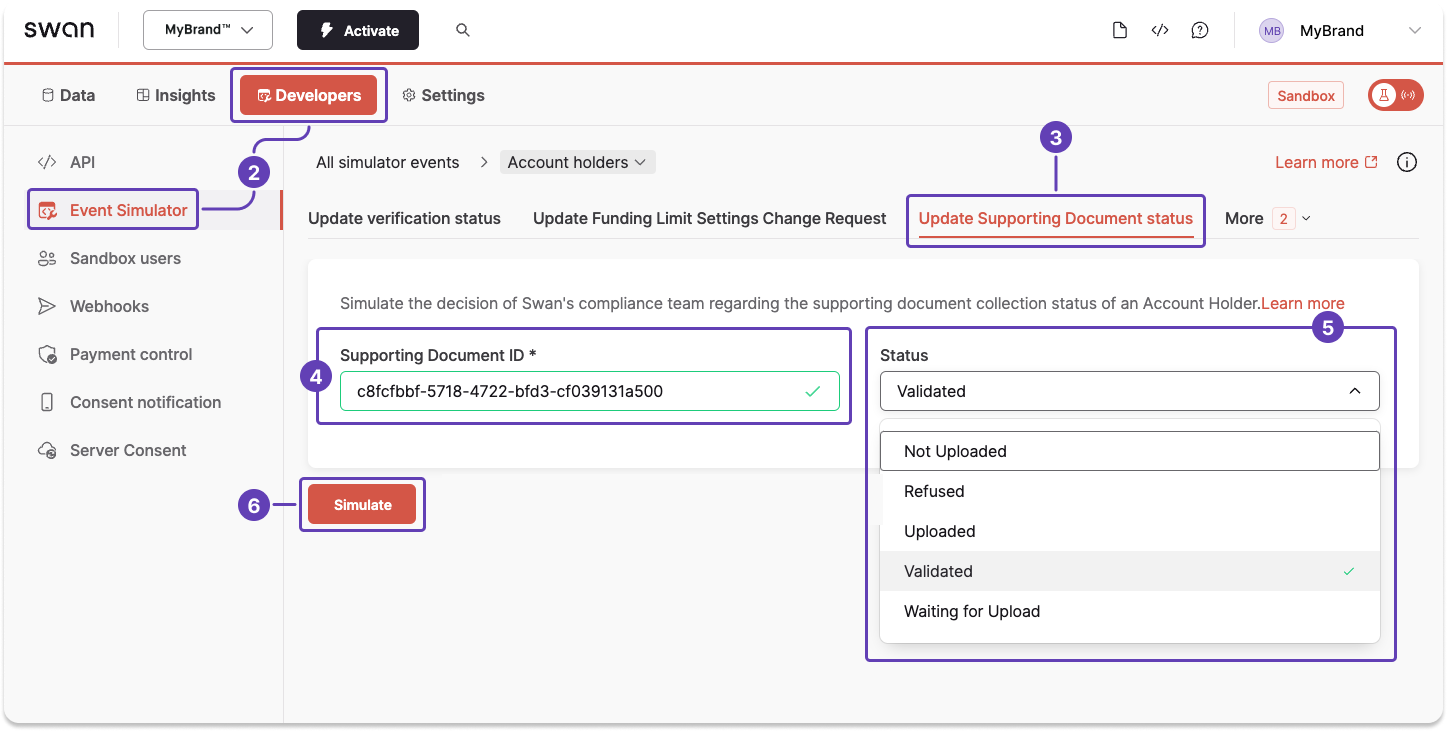
With the supporting document ID, use the Event Simulator to change the document status to any available status.
- Get the supporting document ID.
- On your Dashboard, go to Developers > Event Simulator.
- Open Account holders, then go to the Update Supporting Document status tab.
- Copy the document ID from the success payload you received in step 1, then paste it into the Supporting Document ID field in the Event Simulator.
- From the dropdown, choose the status you'd like to simulate.
- Click Simulate.
Testing API
You can also simulate a document status update with the Testing API. The example below shows the success payload only; the Explorer link also includes the rejection fragments.
Open in API Explorermutation SimulateDocumentStatusUpdate {
updateSupportingDocumentStatus(
input: { supportingDocumentId: "$DOCUMENT_ID", status: Validated }
) {
... on UpdateSupportingDocumentStatusSuccessPayload {
__typename
supportingDocument {
createdAt
id
statusInfo {
status
}
supportingDocumentPurpose
supportingDocumentType
updatedAt
}
}
}
}
Payload
{
  "data": {
    "updateSupportingDocumentStatus": {
      "__typename": "UpdateSupportingDocumentStatusSuccessPayload",
      "supportingDocument": {
        "createdAt": "2024-02-15T10:08:32.792Z",
        "id": "$DOCUMENT_ID",
        "statusInfo": {
          "status": "Validated"
        },
        "supportingDocumentPurpose": "AssociationRegistration",
        "supportingDocumentType": "Other",
        "updatedAt": "2024-03-11T16:24:22.041Z"
      }
    }
  }
}
Simulate requesting a document
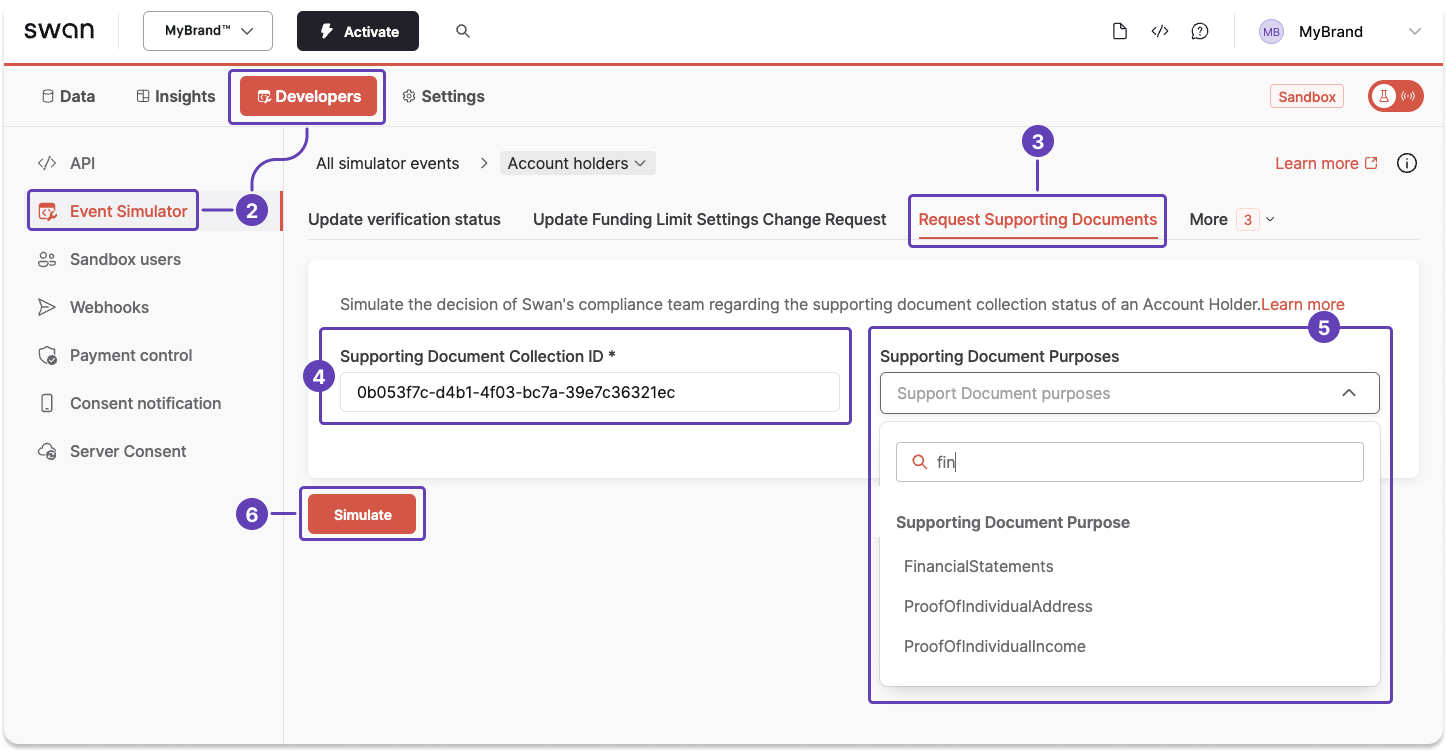
With the supporting document collection ID, use the Event Simulator to request a supporting document with a specific purpose.
- Get the supporting document collection ID.
- On your Dashboard, go to Developers > Event Simulator.
- Open Account holders, then go to the Request Supporting Documents tab.
- Copy the document collection ID from the success payload you received in step 1, then paste it into the Supporting Document Collection ID field in the Event Simulator.
- From the dropdown, choose the purpose of the document you need to collect. Use the search if needed.
- Click Simulate.