Audience:
Configure consent notifications
You can declare a preferred notification channel for your users and configure how your consent notifications appear. For when to use consent notifications and how they work, including the Web Banking exception, refer to notification preferences.
Your integration has two seconds to respond to a consent notification.
If your response is anything other than an HTTP 200 OK, or there's no response at all, Swan redirects the user to the standard text message consent flow.
The fallback applies to all flows, including 3DS, and users can also choose to receive a text message instead with a button on the consent screen.
This timeout complies with 3-D Secure (3DS) requirements.
Declare preferred notification channel
You can specify how your user would like to receive consent notifications, referred to as their preferred channel.
Authenticate with a project access token.
- Call the
updateUserConsentSettingsmutation. - Enter the user's
userId. - Choose the preferred channel:
Sms(default value): Swan sends a text message to the user with the SCA link to open on their mobile device.App: You receive a notification, then send the SCA link to your user yourself.
Mutation
Open in API Explorermutation PreferredChannel {
updateUserConsentSettings(
input: {
userId: "$YOUR_USER_ID"
preferredNotificationChannel: Sms
}
) {
... on UpdateUserConsentSettingsSuccessPayload {
__typename
userConsentSettings {
preferredNotificationChannel
}
}
... on UpdateUserConsentSettingsTokenRejection {
__typename
message
}
}
}
Payload
Notice the preferred channel Sms (line 6).
{
  "data": {
    "updateUserConsentSettings": {
      "__typename": "UpdateUserConsentSettingsSuccessPayload",
      "userConsentSettings": {
        "preferredNotificationChannel": "Sms"
      }
    }
  }
}
Configure consent notification
Configure your consent notification on your Dashboard.
- Go to Dashboard > Developers > Consent notification.
- Enter your endpoint, secret key, accent color, and logo.
- Click Save.
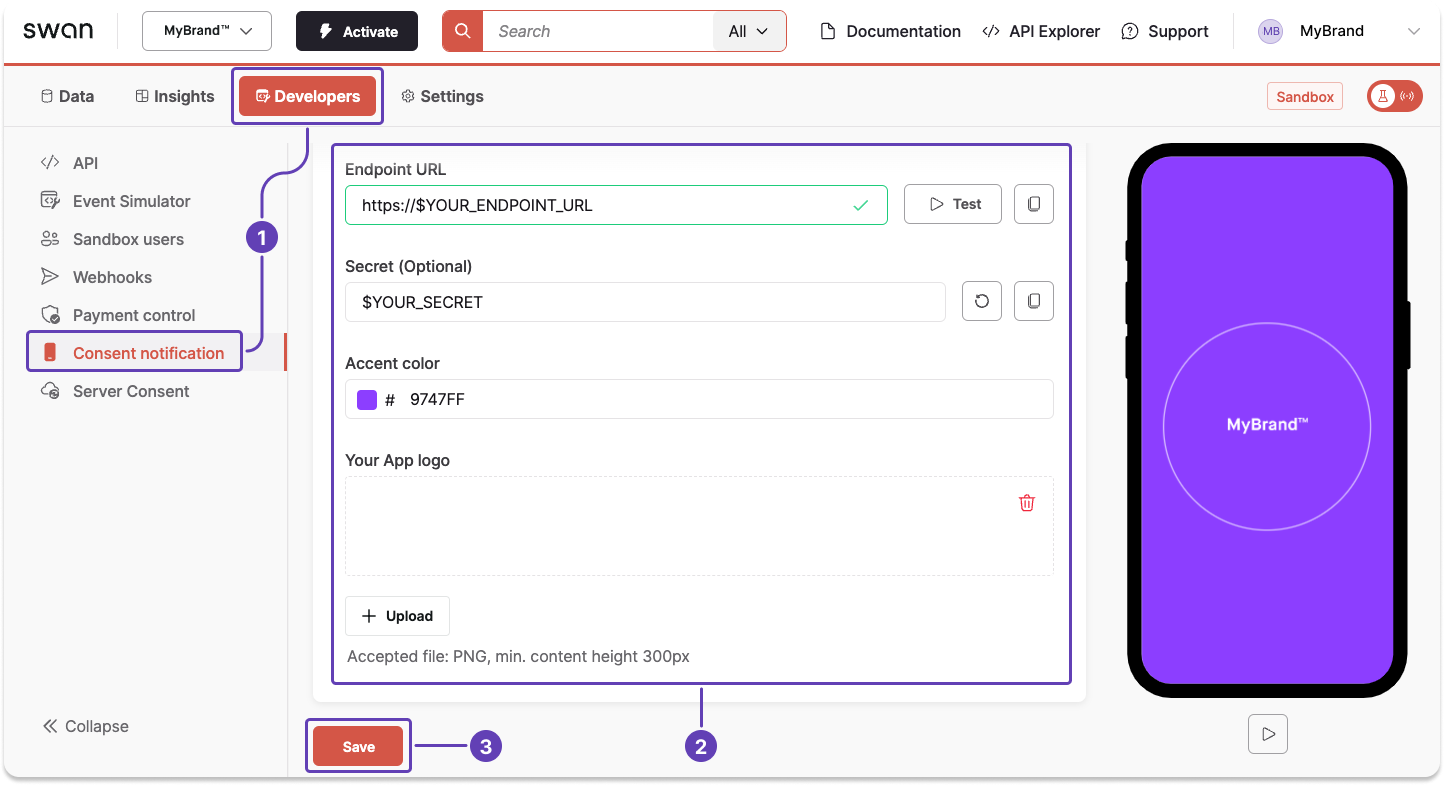
Along with a notification, you'll receive an authorizationUrl and the consent object to display to your user on their mobile.
On desktop, Swan displays the consentUrl.
While consent is ongoing, the user's mobile displays a looping animation with your accent color and logo.
Tips and recommendations
- If Swan detects that the user is already on a mobile app, Swan uses a mobile consent flow and doesn't send a text message. This differs from consent notifications, which enable communication between the browser and the mobile app for in-app notification consent instead of text message consent.
- 3DS always uses text messages regardless of whether you're on desktop or mobile, but you can use consent notifications to optimize 3DS UX by setting
preferredNotificationChannel: App. When configured, users performing 3DS card payment validation receive an in-app notification instead of a text message, containing a consent link that opens the consent app directly on their phone.