Audience:
View sensitive information
View a physical card's numbers and PIN, both protected by the cardholder's consent.
If information fails to become visible despite having the appropriate permissions, it may remain hidden due to regulatory restrictions based on your location.
View physical card numbers
View the physical card numbers, which is different from the virtual card numbers, by calling the viewPhysicalCardNumbers mutation which returns a consent.
When you do this, make sure you're authenticated with a user access token using the name of the card's account member.
Then a consentUrl is returned, inviting the user to start the Strong Customer Authentication with Swan.
After the consent is accepted, the card's sensitive information is displayed for five minutes. The link to view the information is also valid for five minutes; the user can close and reopen the link anytime within those five minutes.
The user can click to copy any of the sensitive information to their clipboard.
After they're done with the card info, they can click okay to be redirected to the redirectUrl set up during the viewPhysicalCardNumbers mutation.
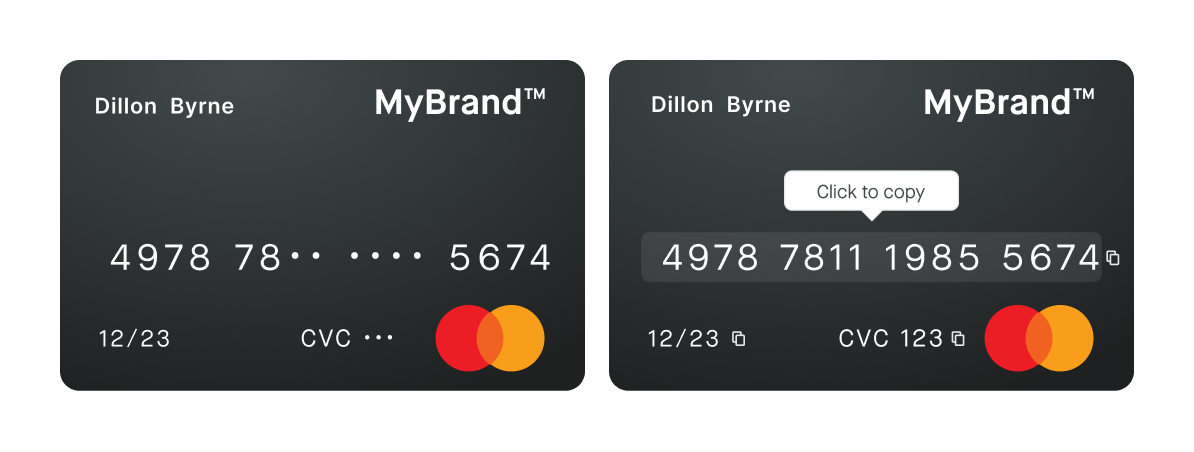
consentIdTo avoid repeating the Strong Customer Authentication each time the client wants to reveal the card numbers, the same consentUrl can be called anytime for five minutes after the consent.
Store the consentId on your side and run a consent query to check that the consent status is Accepted and the updatedAt is less than five minutes old, before reusing the consentUrl.
The consentUrl only works in the cardholder's browser where the consent was completed.
Mutation
Open in API Explorermutation ViewPhysicalCardNumbers {
viewPhysicalCardNumbers(
input: {
cardId: "$YOUR_CARD_ID"
consentRedirectUrl: "$YOUR_REDIRECT_URL"
}
) {
... on ViewPhysicalCardNumbersSuccessPayload {
__typename
consent {
consentUrl
}
}
}
}
View PIN
You can display the physical card's PIN by calling the viewPhysicalCardPin mutation which returns a consent.
When you do this, make sure you're authenticated with a user access token using the name of the card's account member.
Then a consentUrl is returned which invites the user to start the Strong Customer Authentication with Swan.
If your card was created before 19:00 Central European [Summer] Time (CET/CEST), you can call the mutation starting from 19:00 the same day. Otherwise, you'll have to wait until the next day at 19:00 to start calling the mutation.
You can check the isPINReady boolean in the physical card's statusInfo when the status is ToActivate.
It's true when the PIN is available.
Refer to the section on PIN availability to understand when a PIN should be ready.
Mutation
Open in API Explorermutation ViewPin {
viewPhysicalCardPin(
input: {
cardId: "$YOUR_CARD_ID"
consentRedirectUrl: "$YOUR_REDIRECT_URL"
}
) {
... on ViewPhysicalCardPinSuccessPayload {
__typename
consent {
consentUrl
}
}
... on PINNotReadyRejection {
__typename
message
physicalCardIdentifier
}
}
}
Payload
Open the consentUrl returned by the mutation to provide consent, then view the PIN.
{
  "data": {
    "viewPhysicalCardPin": {
      "__typename": "ViewPhysicalCardPinSuccessPayload",
      "consent": {
        "consentUrl": "$YOUR_CONSENT_URL"
      }
    }
  }
}